Working with the Voice Channel
- voice channel overview and image
Call Actions
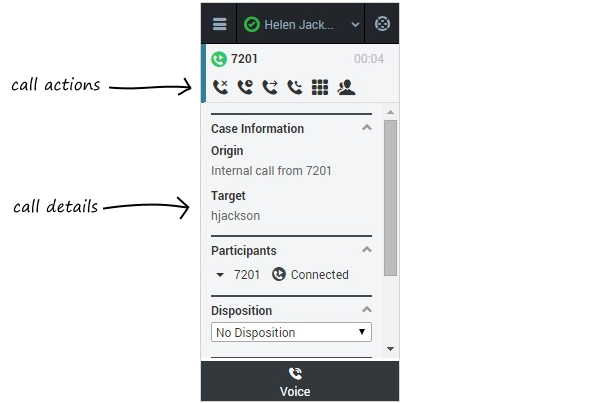
The table below describes the common buttons you might see in the list of call actions:
| Action | Button | Description |
|---|---|---|
| Hang up | 
|
Ends the call. |
| Hold | 
|
Places the call on hold. If you do this, you'll see a slightly different list of actions with a Retrieve button ( ): ):  |
| Instant Transfer | 
|
Redirects the call to another contact you select using Team Communicator. See Transferring a Call for details. |
| Instant Conference | 
|
Starts a voice conference instantly with the current call and another contact you select using Team Communicator. See Initiating a Conference Call for details. |
| Keypad | 
|
Calls up the keypad. You can use this to attach numerical data to the call by entering dual-tone multi-frequency (DTMF) digits into the call case history. Enter or select the digits and then hit Enter on your keyboard. 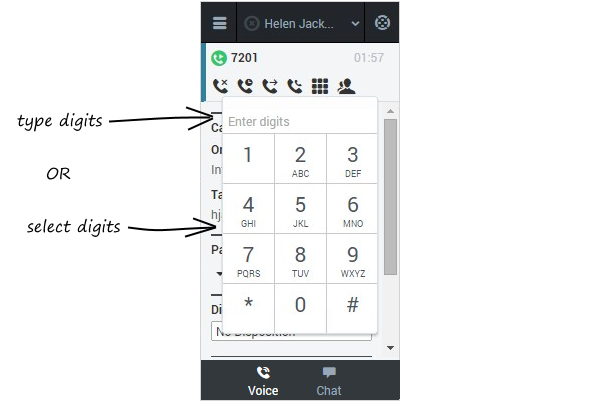 |
| Consult | 
|
Starts a consultation with another contact before transferring or conferencing the call to that contact. See Initiating a Consultation for details. |
Case Information
The Case Information section shows you read-only information about the call — the exact information is determined by your administrator.
Here are a few examples of some information you might see in your call view:
- Origin
- Target
- Contact name
- Call type
- Account information
- Subject
Participants
The Participants section shows you read-only information about who else is on the call and the state of the call (Ringing, Connected, Ended, and so on). This section especially helpful when you're trying to keep track of who is participating in a conference call, for example.
Disposition
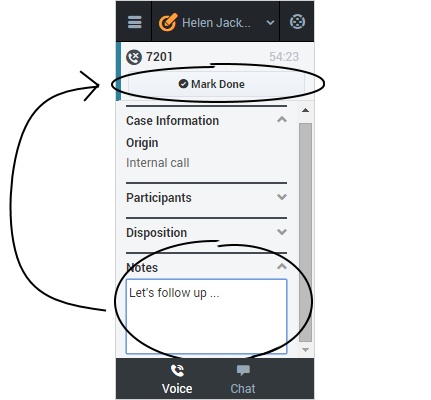
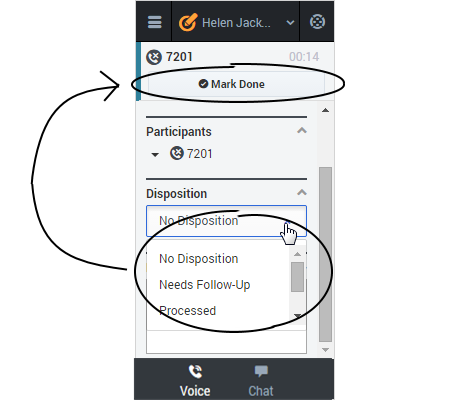
If configured by your administrator, you can change the disposition for a call either during the call or as part of your after call work. To update, just click the dropdown list and select a disposition. The change is saved once you click Mark Done.
Note
If configured by your administrator, you can add notes to the history for the contact either during the call or as part of your after call work. To update, just enter your comments in the text field. The notes are saved once you click Mark Done.