
Viewing a Sample Application
Contents
Composer provides a set of predefined Project templates containing sample applications. If using Composer for the first time, before creating your own Project, you may find it helpful to load one or more of the sample Projects. The procedures below lead you through the process of loading a sample applications.
Sample Integrated Voice and Route Application
- By default, when you enter Composer for the first time, you will be taken inside the Composer perspective.
- On the toolbar, click the button to create a Java Composer Project.
- In the Java Composer Project dialog box, name your Project and indicate whether you want to use the default location.
- Select the Project type: Integrated Voice and Route' , Voice , or Route . Your selection will determine which Project templates are shown in the next dialog box. For this example, select Integrated Voice and Route .
- Click Next . The Select a Composer Project Template dialog box opens.
- Select the Routing Based on DNIS and ANI Project template and click Finish . A commented RoutingOnDNISandANI.workflow diagram appears on the canvas.
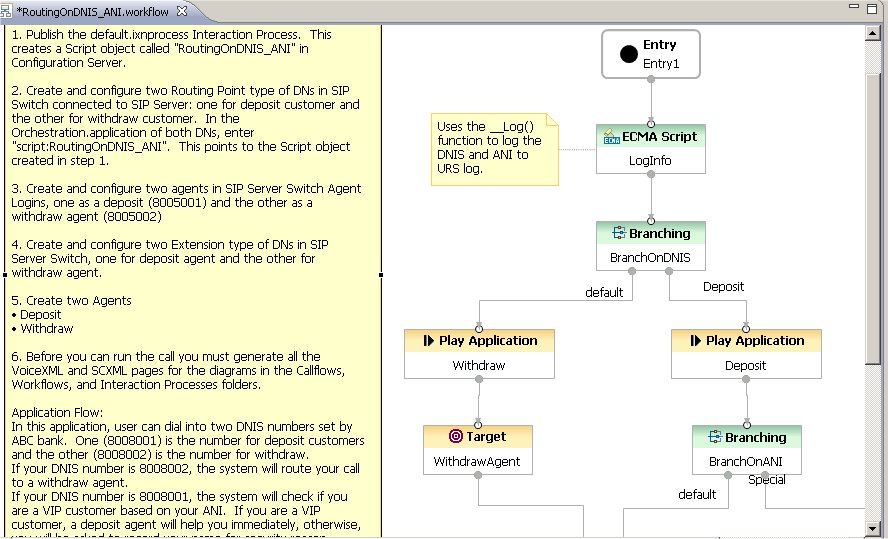
- Double-clicking a block opens its Properties view so you can view the fields.

The next procedure differs from the above procedure in that it demonstrates how to view a workflow contained within an interaction process diagram.
Viewing a Routing Workflow Inside an Interaction Process Diagram
By default, when you enter Composer for the first time, you will be taken inside the Composer perspective.
- On the toolbar, click the button to create a Java Composer Project.
- In the Java Composer Project dialog box, name your Project and indicate whether you want to use the default location.
- Select the Project type: Integrated Voice and Route , Voice , or Route . For this example, select Route .
- Click Next . The Select a Composer Project Template dialog box opens.
- Select Context Services Service Project click Finish . This automatically creates an interaction process diagram for voice interactions with a single Workflow block in the default.ixnprocess tab.
- Double-click the Worfklow block to open the Properties view in the tab underneath.
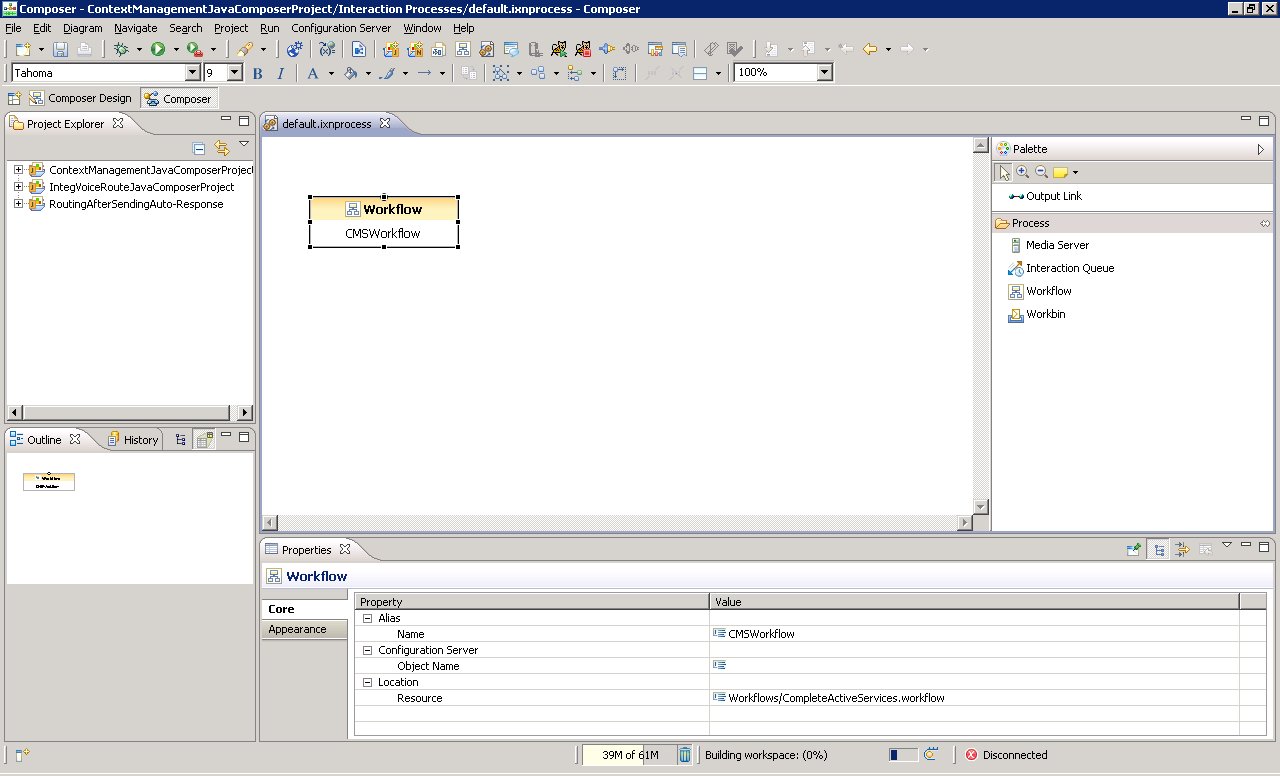
- In the Properties view, note that the Resource property indicates that the name of the workflow is CompleteActiveServices.workflow . To view this workflow, expand the Project in the Package Explorer on the left.
- Expand the Workflows folder.
- Double-click CompleteActiveServices.workflow . A commented workflow appears.
- View the properties for each block by double-clicking a block.

Use the above method to review the various routing Project templates.
This page was last edited on July 17, 2020, at 15:47.
Comments or questions about this documentation? Contact us for support!